01 · OBS Setup

Add the overlay to OBS.

Five steps. No installer, no extension. A dedicated WES Alert scene with a Browser Source pointing at your private overlay URL, reused across every scene that needs alerts. Three minutes, end to end.

Before you start

  • OBS Studio 28 or later. Earlier versions work but the Browser Source defaults changed in 28.
  • An active WES Alert account. Visit your Dashboard and confirm you can see the Overlay URL field.
  • Your Twitch channel connected (OAuth in the Dashboard).
01

Copy your overlay URL.

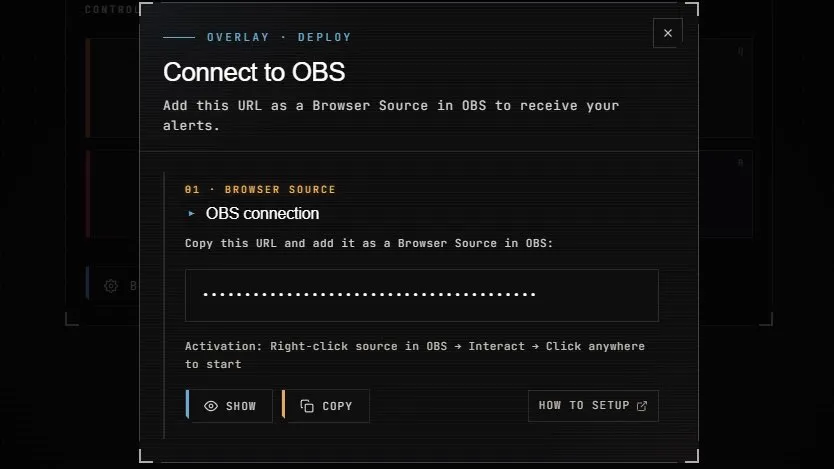
In the Dashboard, find the Overlay URL block. Click Show to reveal the URL, then Copy. Keep this URL private. It carries your license key.

Shared it by accident? You can rotate the URL anytime from Advanced Settings → Security. See the Security guide for what to do after a regeneration.

Dashboard · Overlay URL block with Show and Copy buttons
02

Create a dedicated WES Alert scene.

Don't drop the Browser Source straight into your gameplay or BRB scenes. Make one standalone scene that holds the overlay, and reuse it as a source everywhere else. One place to update, no duplicates fighting each other.

Two clicks, in order:

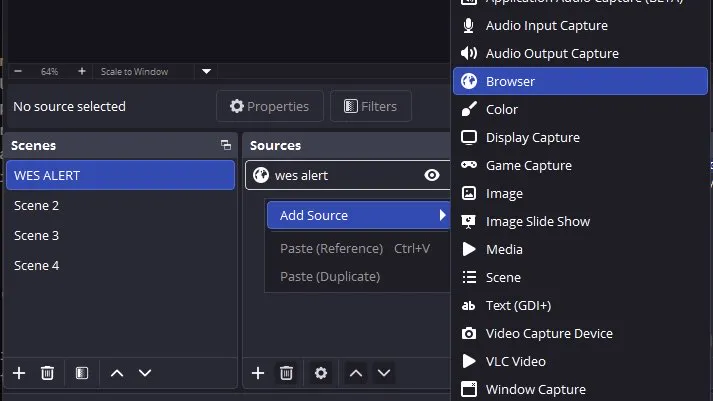
  1. In the Scenes panel (left), click +. Name the new scene WES Alert. Make sure it's selected.
  2. In the Sources panel (right), click +Browser. Name the source WES Alert too.
OBS · Scenes & Sources panel · dedicated WES Alert scene
03

Configure the Browser Source.

The Browser Source properties dialog opened when you added the source. Set it up like this. These are the values WES Alert is built and tested against:

  • URL Paste the overlay URL you copied.
  • Width 1920
  • Height 1080
  • Control audio via OBS Off.
  • Use custom frame rate On.
  • FPS 60
  • Custom CSS Leave empty.
  • Shutdown source when not visible Off.
  • Refresh browser when scene becomes active Off.
  • Page permissions Read access to OBS status information.

Why 60 FPS? WES Alert animations are tuned for smooth 60 fps motion. OBS defaults to 30, fine for a logo, choppy for our alert animations. Always force 60 with Use custom frame rate.

Why audio off the OBS mixer? Sound plays directly through the browser engine. The Dashboard's volume slider and Smart Volume cascade control the level. Routing through OBS would add a second mixer to debug for no gain.

04

Reuse the scene in every gameplay scene.

In each of your other scenes (game, IRL, BRB, ending…), add the WES Alert scene as a source: click + in SourcesScene → pick WES Alert. OBS treats it as a transparent passthrough: alerts fire on top, nothing else.

This is the OBS pattern for shared overlays: one source of truth, mirrored across every scene with a single click. Update the URL or swap the pack later, every scene follows.

05

Fire a test alert.

Back in your Dashboard, open the Test Alerts panel. Pick an event type (follow, sub, donation) and click Send. The alert should play in OBS within a second.

If nothing happens, check OBS → ViewDocksStats: the Browser Source should report no errors. If it does, see Troubleshooting below.

Need to position it? The transparent overlay makes blind placement in OBS tricky. In the Dashboard, click Pack Settings (next to Change Pack), then in 01 · Placement / Alert position, tick Freeze a test alert in OBS to dial in position & size. A test alert stays on while you drag and resize the Browser Source in OBS, so you can see exactly where it will land.
Troubleshooting

I have no sound.

First, check the toggle. In your Dashboard, Core Settings is always visible. Confirm Sound Effects is on.

If it is, it's Chromium's autoplay policy. The overlay needs a user interaction before audio can play. The Dashboard banner tells you which state you're in:

  • Audio initialized successfully. You're good, nothing to do.
  • Audio needs re-initialization. Right-click the WES Alert Browser Source in OBS → Interact → click anywhere in the window that pops up. The banner switches to the success state and audio plays from then on.
Nothing happens when I send a test alert.
Make sure the Browser Source is in your active scene (visible eye icon). Right-click it → Refresh. If you suspect the URL itself was compromised (shared on stream, pasted in a public Discord, etc.), you can rotate it from the Dashboard — see Security · Overlay URL for the procedure and what to update in OBS afterwards.
The overlay shows a white background instead of being transparent.
OBS Browser Source defaults to opaque on some older versions. In the source properties, expand Custom CSS and confirm nothing forces a background. WES Alert ships with transparent CSS by default.
Where do I find help if this isn't covered?
Reach out via the contact on the Beta page. The closed beta is small enough that we read every email.

Setup done?

Pick a pack, tweak the palette, set your alert position. Everything lives in the Dashboard.